How Taskli works: from sign-up to the first reward
A step-by-step guide for parents and kids, shown in the Fly theme — with real app screens and a glossary of its “space” lexicon.
Taskli is a family task tracker: parents create tasks and rewards, kids complete tasks, earn credits, and trade them for rewards. The mechanics are simple, but the first launch can be disorienting: the app is dressed in "themes", and every theme speaks its own language. In Fly — the default theme — your family is a crew, tasks are missions, and credits are stardust, marked with a ✦.
Don't let the lexicon scare you. The "space" names are only a skin: underneath are ordinary tasks, credits, and rewards. There is a Fly glossary at the end of this guide, and you can always switch to a more neutral theme — Kanban, for example.
1Parent sign-up
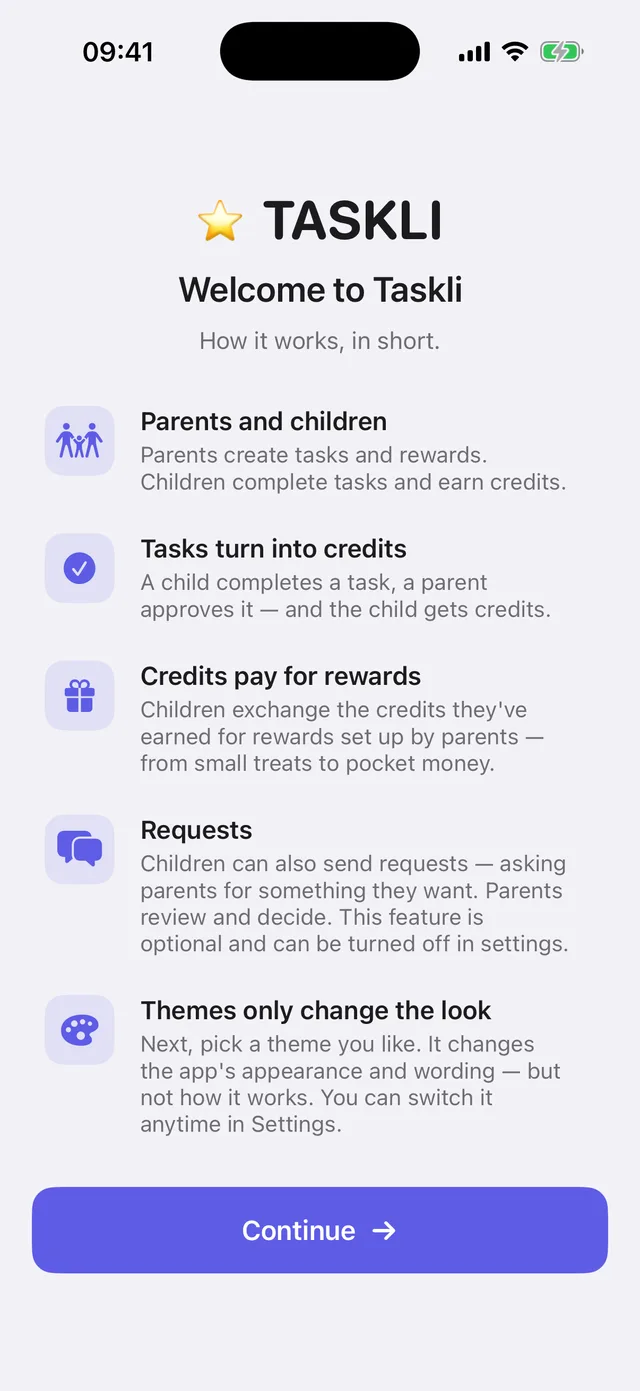
Download Taskli from the App Store and open it. The first screen explains the idea in plain words: parents create tasks and rewards, kids earn credits, and completed tasks are approved by a parent.
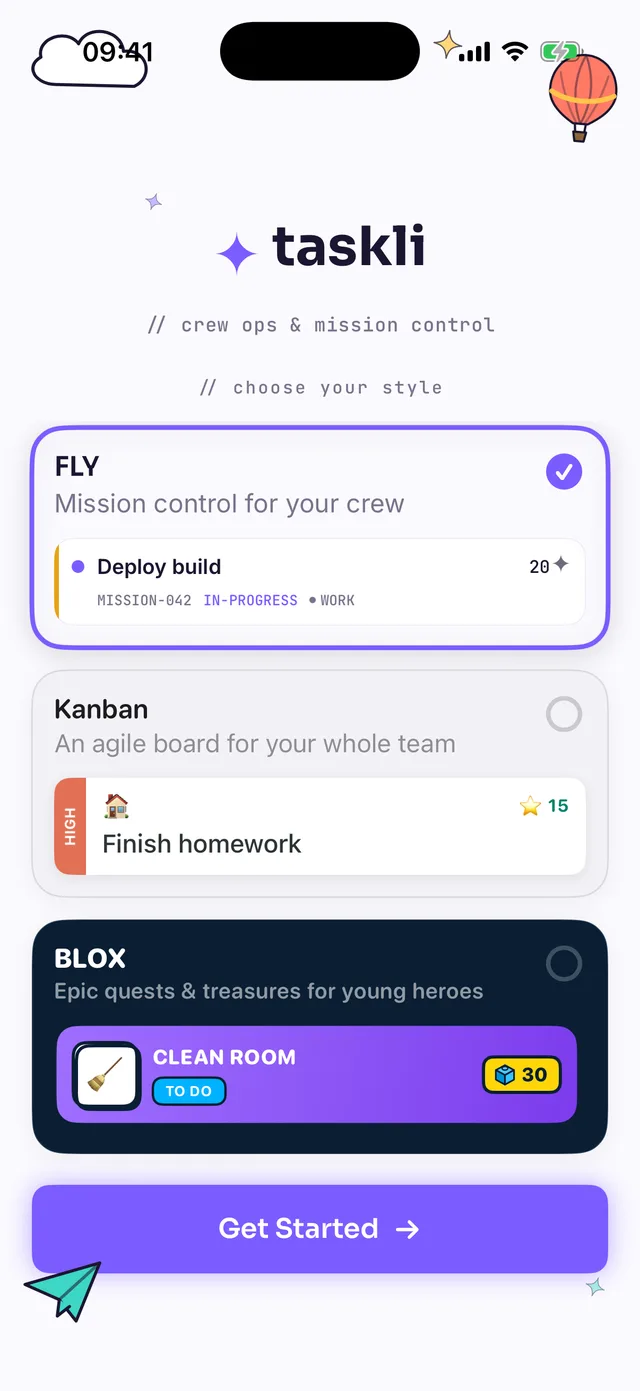
Next, the app asks you to pick a style — a visual theme. This choice is purely cosmetic: tasks, credits, and progress are identical in every theme, and you can change it later at any time. This guide uses the Fly theme (the first card).
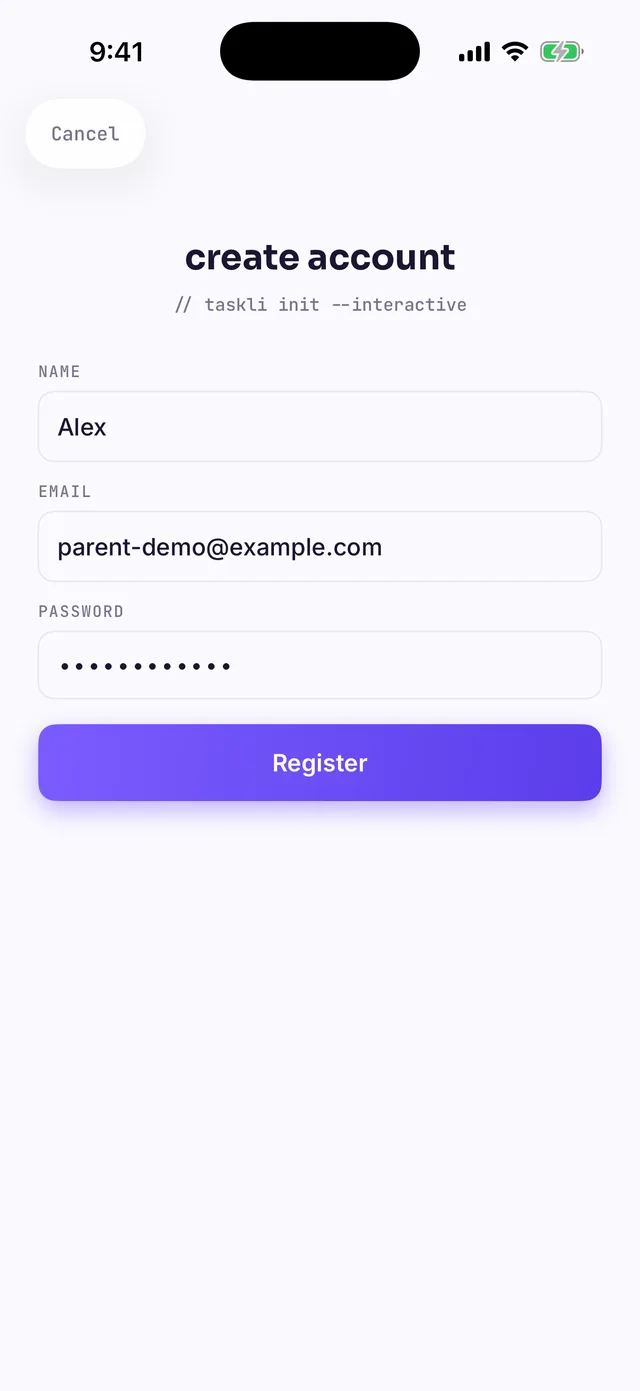
Then create an account: name, email, and password. Only an adult can self-register in Taskli — an account created through the Register button is always a parent account. Child accounts are created differently, by invitation — more on that below.
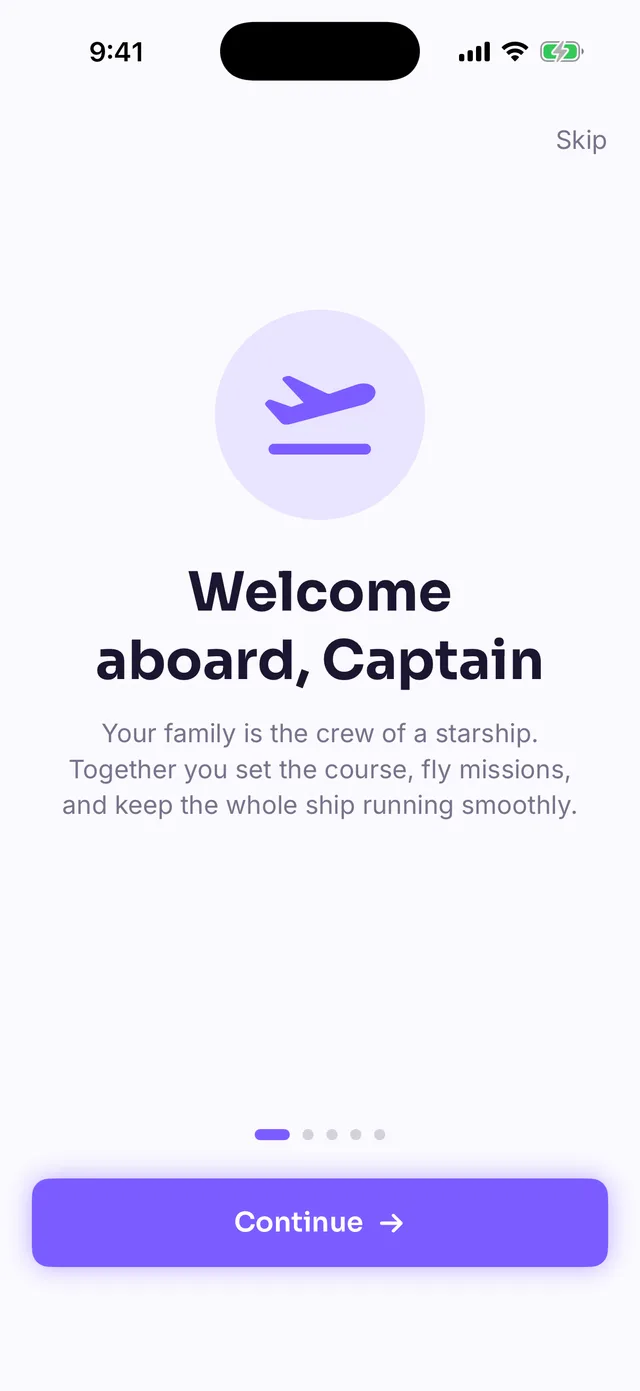
Right after registration the Fly theme gets into character: a Welcome aboard, Captain screen explains the metaphor — your family is now a starship crew, you are the captain, and the kids are pilots.
2Creating your family
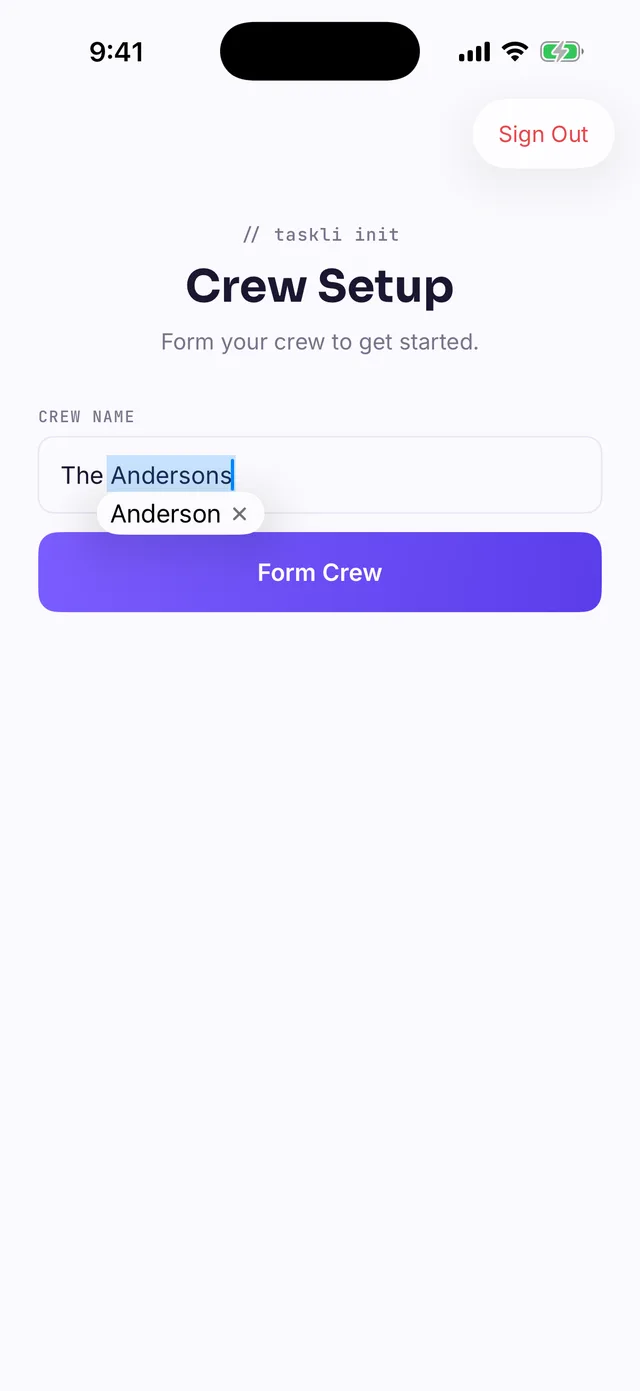
The first thing the app asks for after sign-up is a family. In Fly this screen is called Crew Setup: type a name (say, "The Johnsons") and tap Form Crew.
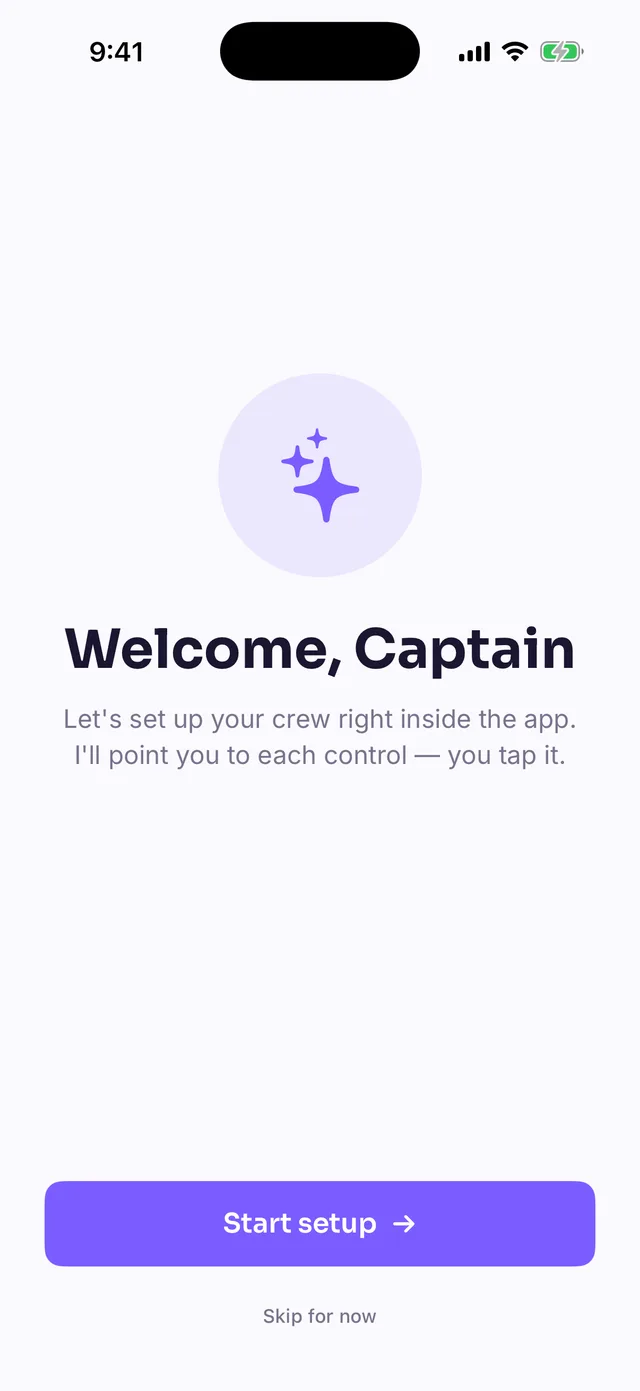
On the main screen you'll be greeted by a guided tour — Welcome, Captain. It highlights interface elements and walks you through the initial setup: add a child, create the first task, stock a reward in the shop. We recommend following it to the end — it's the fastest way to get comfortable. If you skipped it, you can restart it anytime from the controls tab → Guided setup.
3Adding kids and a co-parent
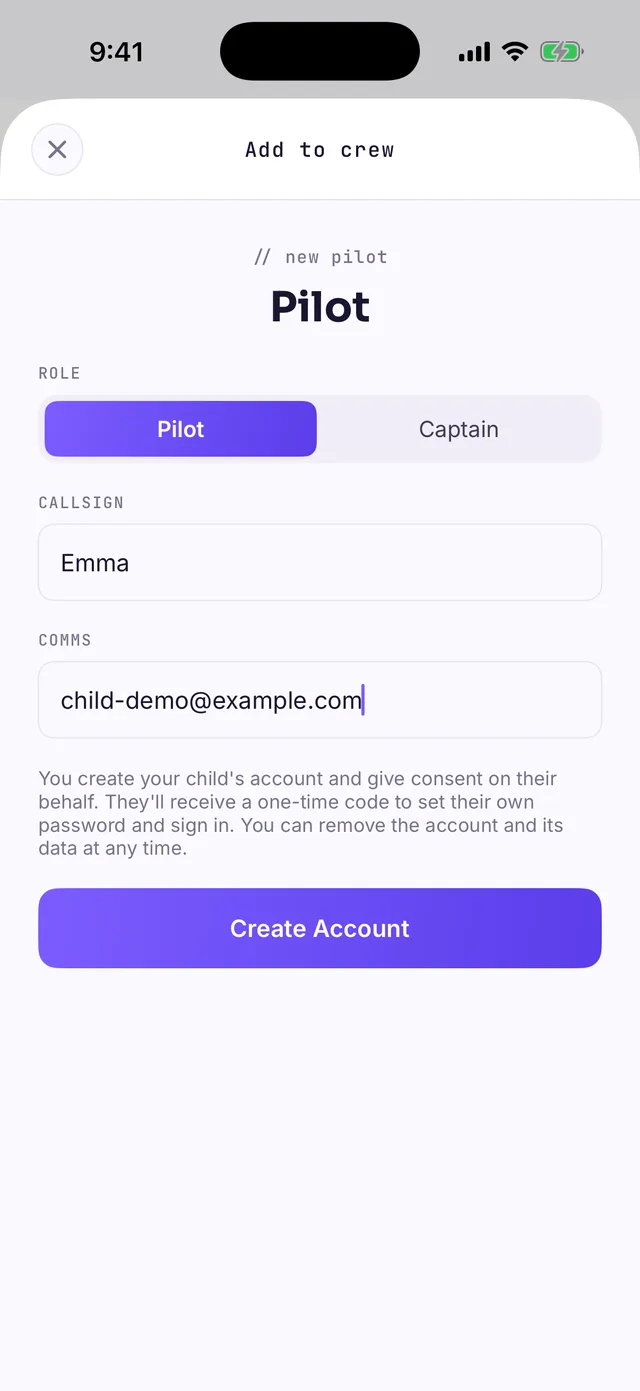
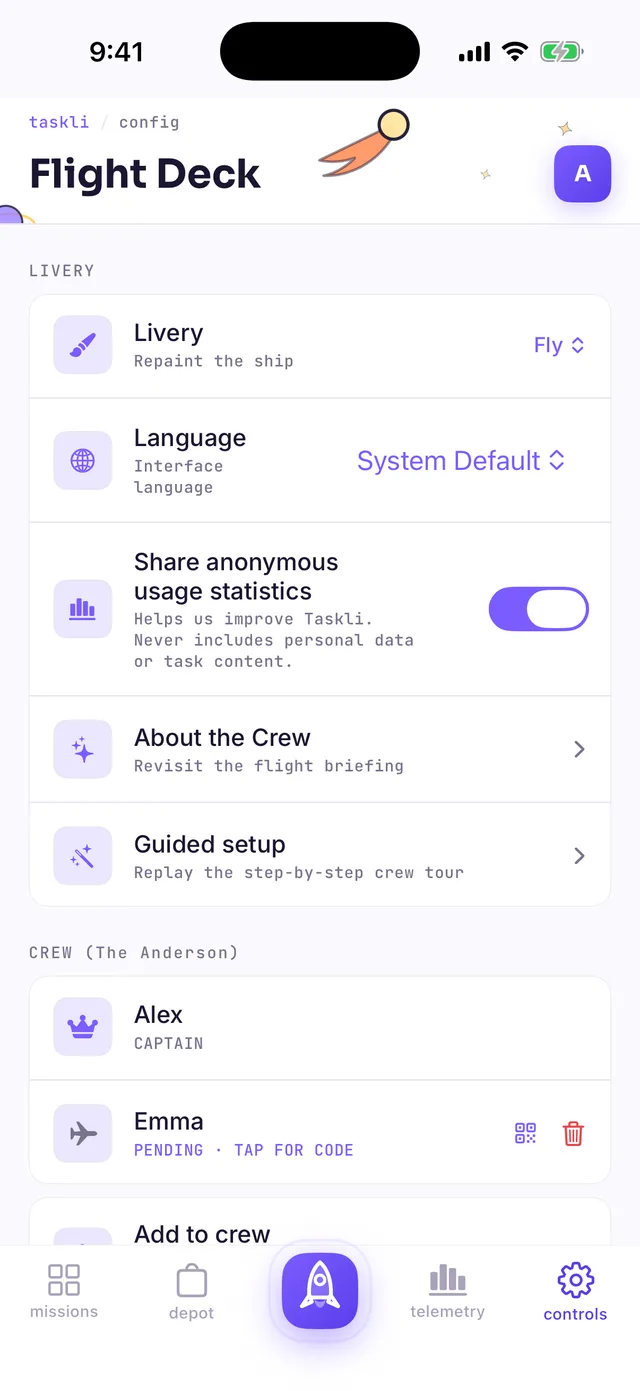
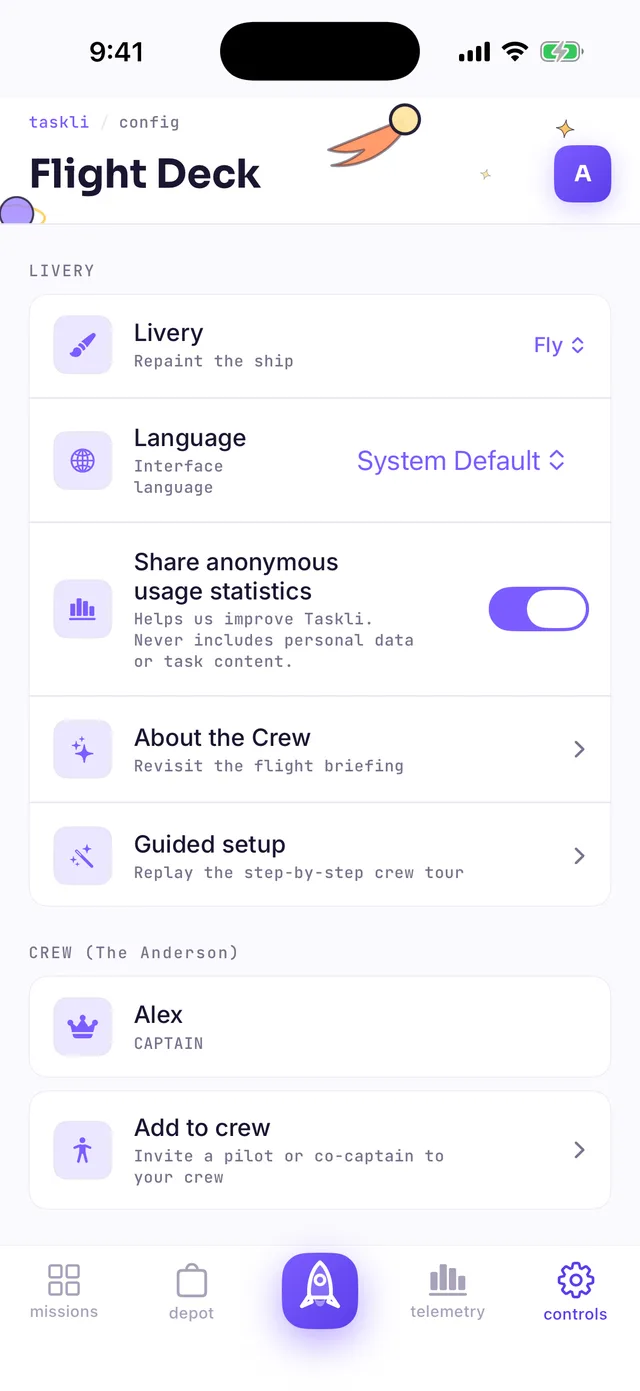
Family members are added in the settings: the controls tab (in Fly the screen is called Flight Deck) → the CREW section → Add to crew.
The form has two "space" fields that raise the most questions:
- ROLE — Pilot is a child, Captain is a co-parent with full rights;
- CALLSIGN — simply the name shown in the app;
- COMMS — the email address the invite is sent to.
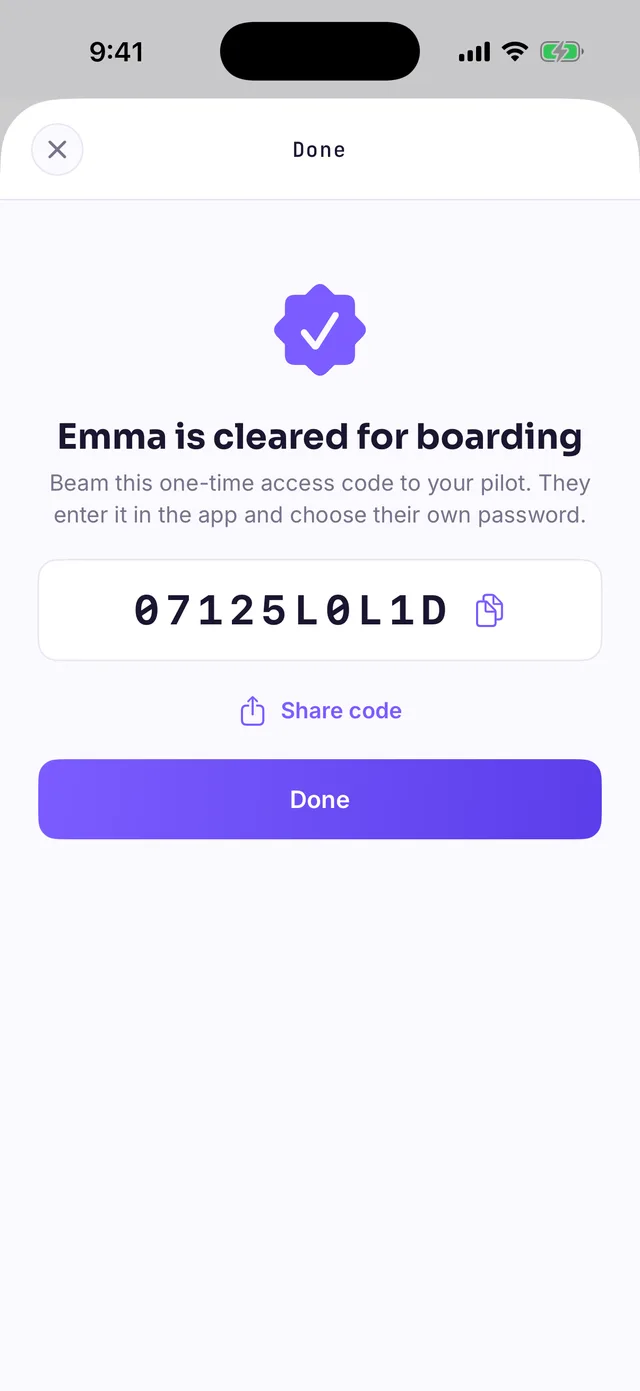
By creating a child account you give consent on the child's behalf — the app says so right under the form. After you tap Create Account, Taskli shows a one-time ACCESS CODE — the "Emma is cleared for boarding" screen. Pass the code to your child any way you like: copy it, send it via Share code — or just read it out loud.
Until the code is redeemed, the child is listed in the crew with a PENDING · TAP FOR CODE badge — tapping it lets you view the code and re-send it.
4How a child signs in
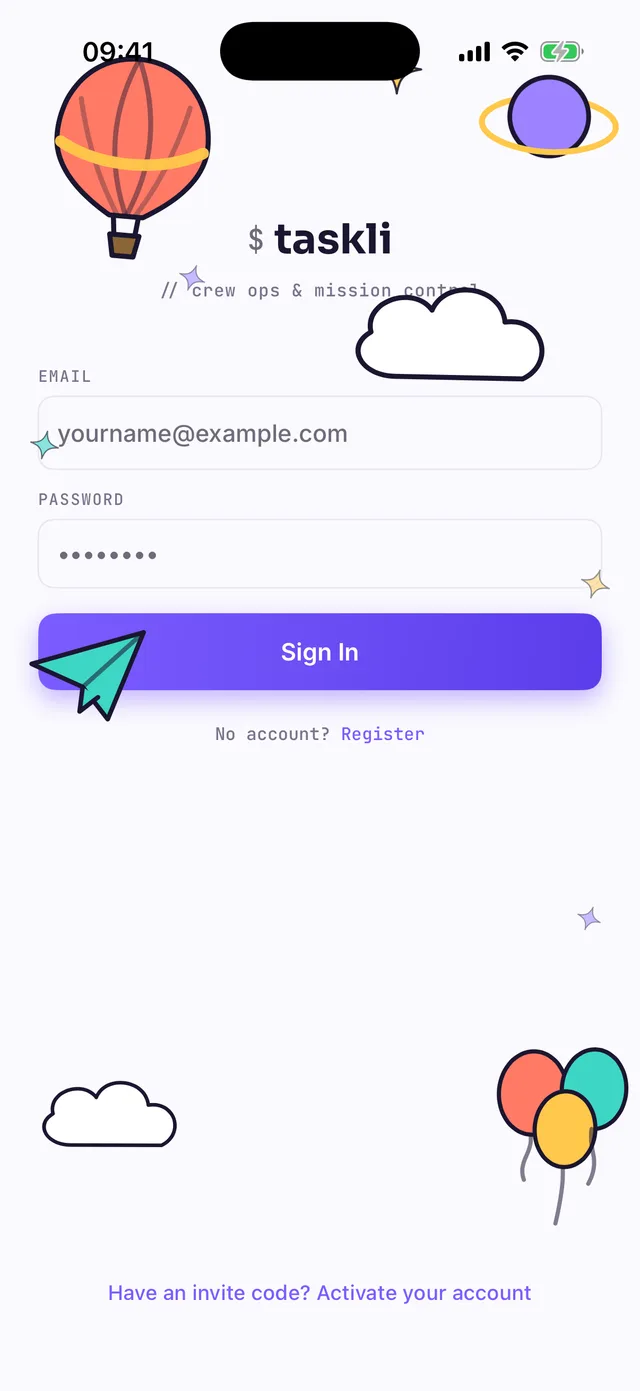
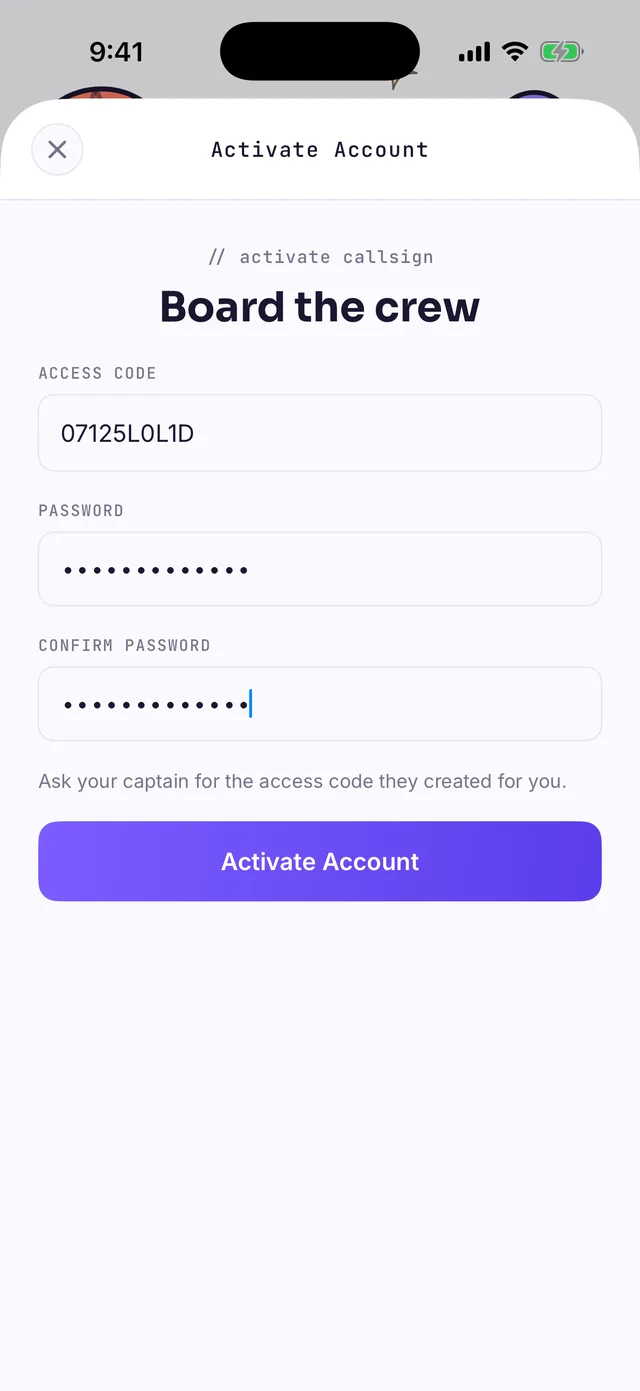
Install Taskli on the child's device and, on the sign-in screen, tap the link at the bottom — Have an invite code? Activate your account. A form called Board the crew opens: the child enters the access code from the parent and picks their own password.
After tapping Activate Account the child lands straight in the app — on their own mission board, with a starter bonus of stardust on the balance. For future sign-ins the login is the email the parent entered in the invite.
5A parent's everyday flow
The mission board
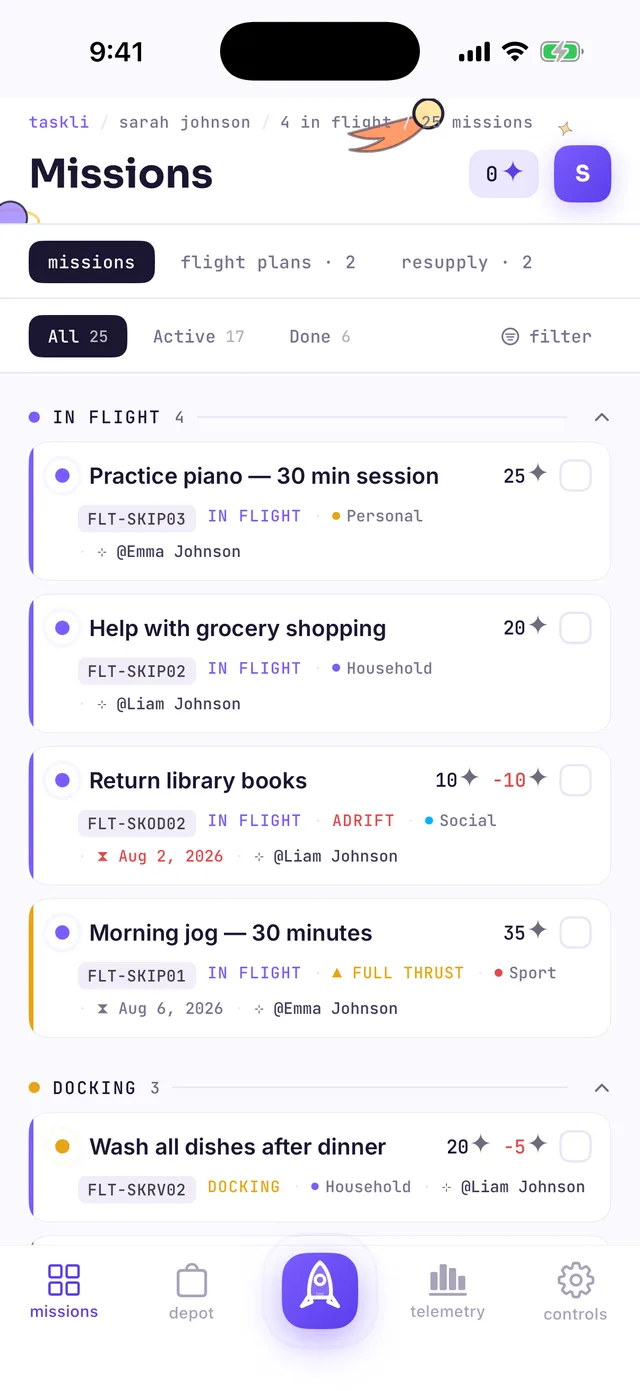
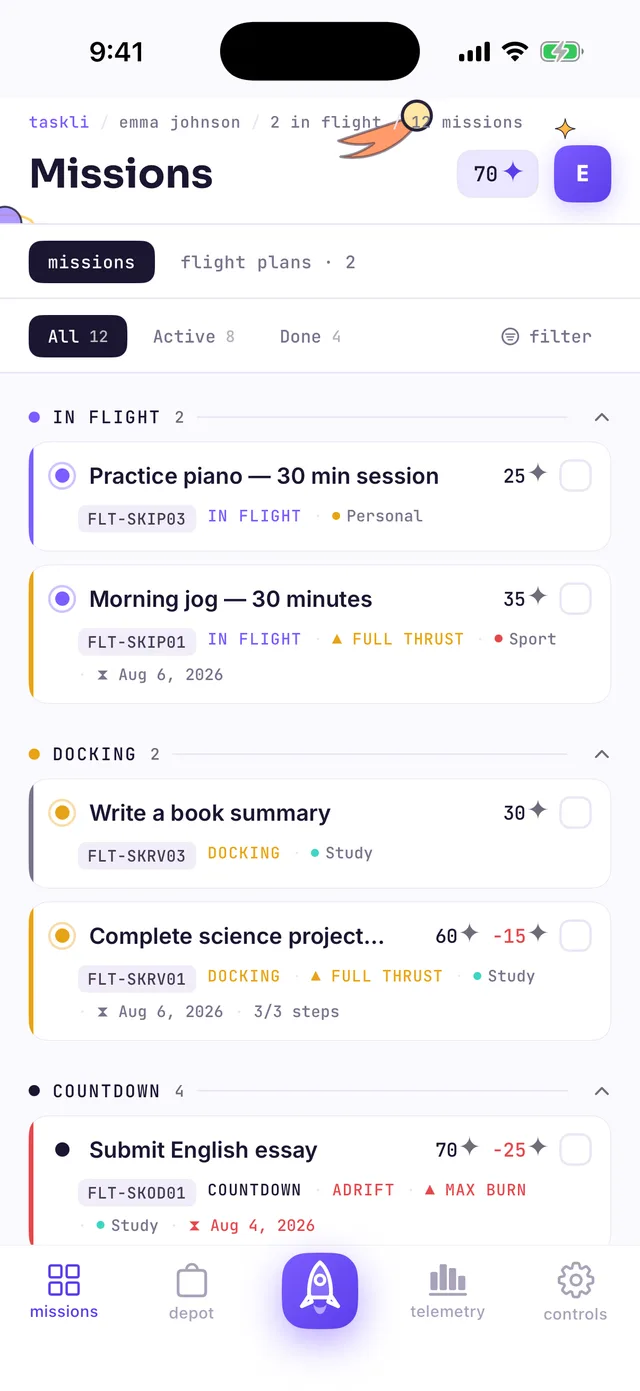
The parent's main tab is missions: every child's tasks, grouped by status. The section names are ordinary task states in a space costume:
- COUNTDOWN — created, the child hasn't started yet;
- IN FLIGHT — in progress;
- DOCKING — submitted, waiting for your review;
- ADRIFT — a red badge on the card: past its deadline.
Next to the board there are two more segments: flight plans — requests from kids ("can I…?"), and resupply — reward purchases waiting for your approval. The FULL THRUST and MAX BURN badges on cards mark elevated task priority.
Creating a task
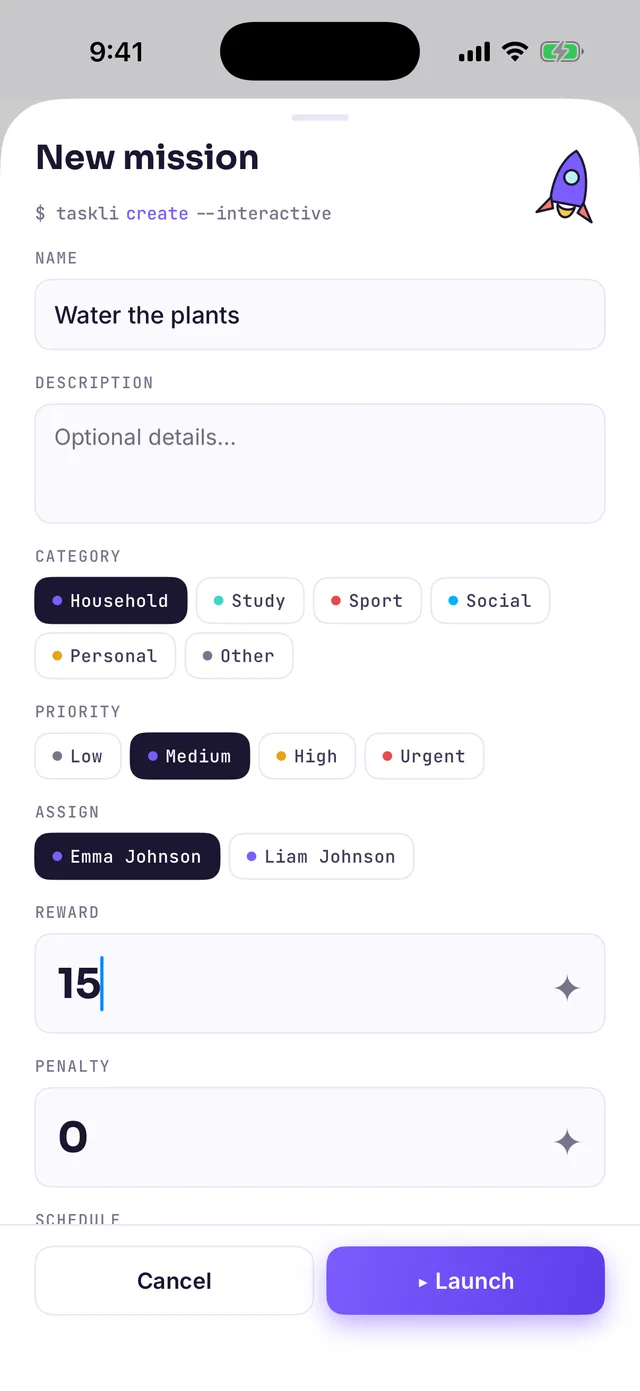
Tap the central rocket button. The form is called New mission: task name, description, category, priority, assignee, a stardust reward, and a PENALTY — how much ✦ is deducted if the task goes overdue. Below, the schedule section sets a deadline and recurrence — for regular chores like "water the plants every Tuesday". The button that creates the task is ▸ Launch.
Reviewing completed work
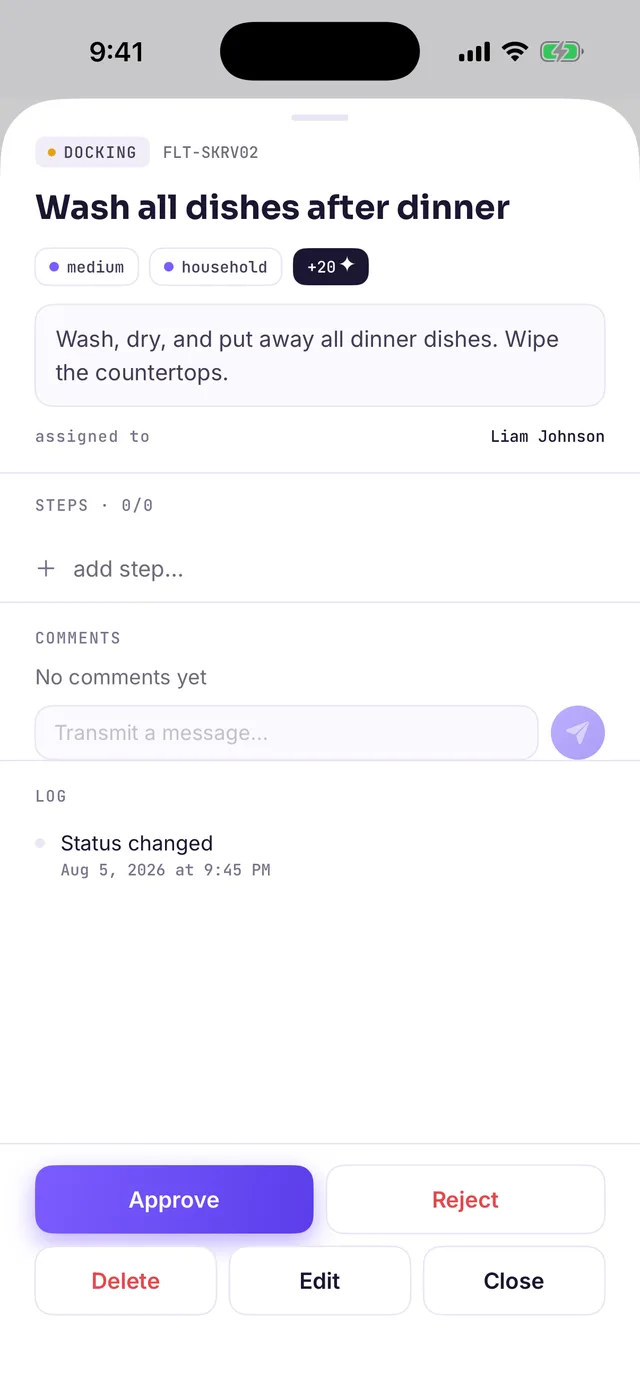
When a child submits a task, it appears in the DOCKING section. Open the card — two buttons at the bottom: Approve credits the stardust to the child, Reject sends the task back to work. You can also leave a comment here — every task has its own thread and a change log.
The reward shop
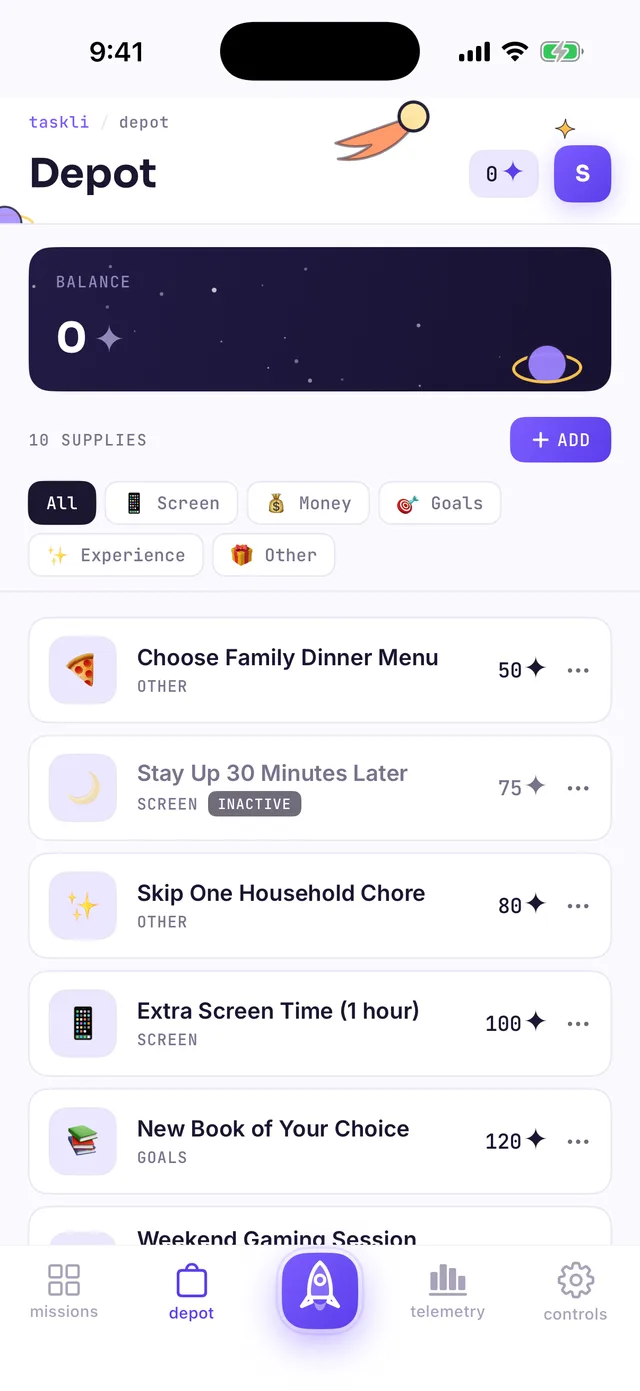
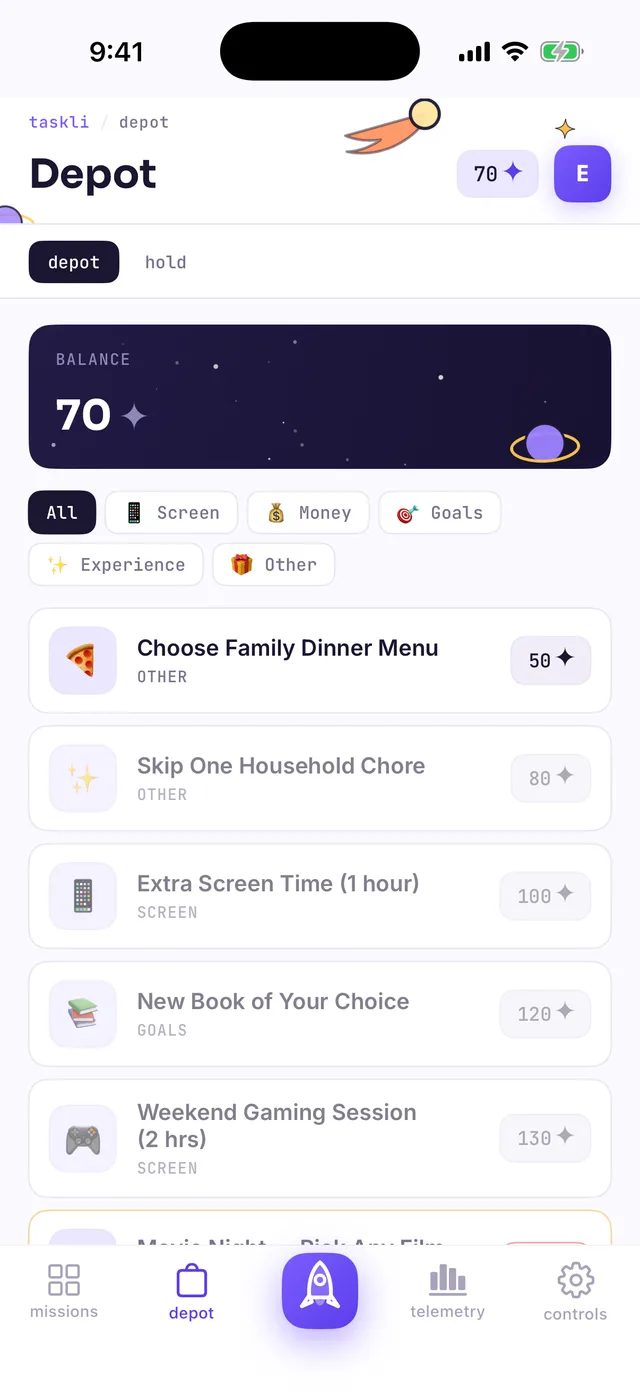
The depot tab is the shop where kids spend what they've earned. You stock it yourself: the + ADD button, a reward name, a price in ✦, and a category — screen time, money, goals, experiences, or other. Start with 3–5 rewards at different prices: a couple of cheap "quick wins" and one or two expensive goals worth saving for.
6What the child sees
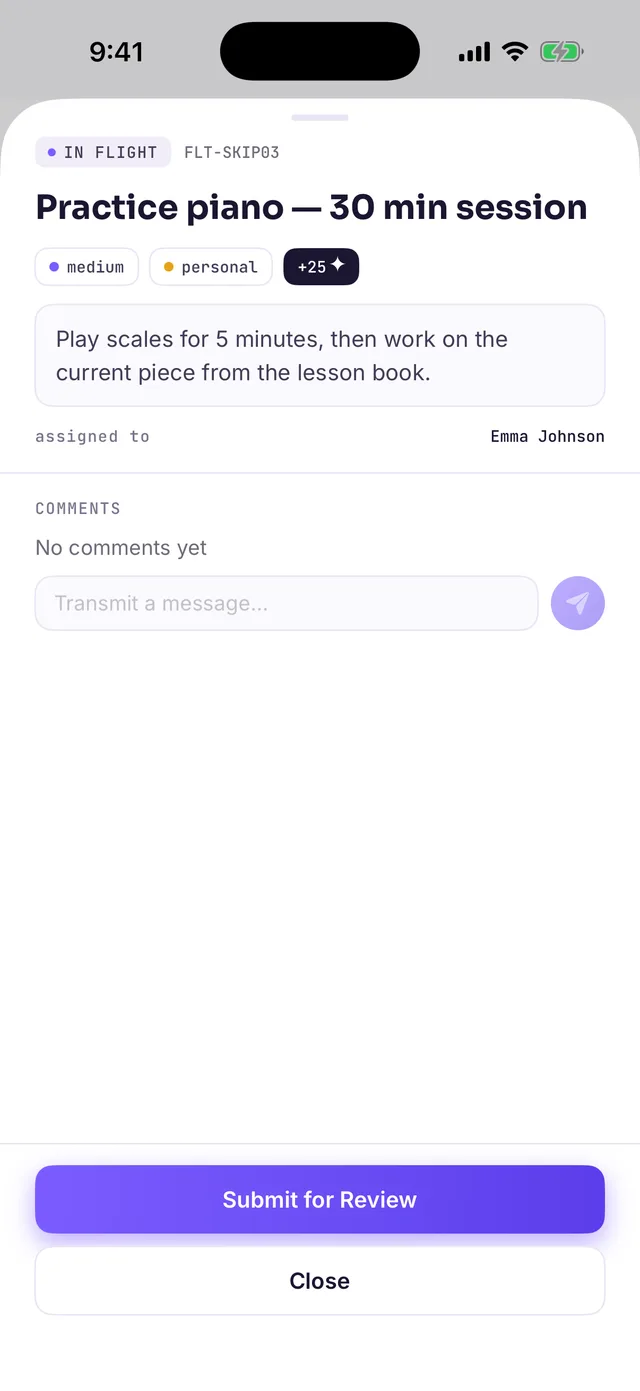
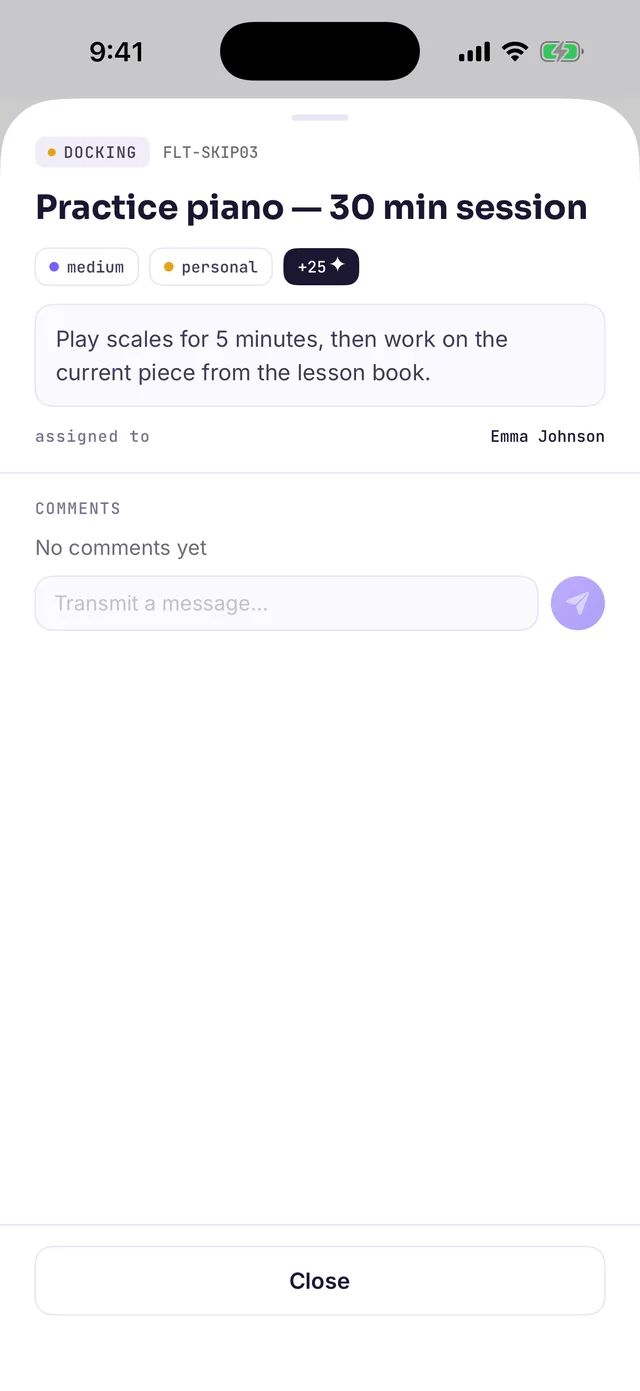
The child gets the same missions board, but with their own tasks only. The header shows the current stardust balance. The routine is simple: open a mission, do the actual thing in real life, and tap Submit for Review. The task moves to DOCKING and waits for the captain's decision — the child can't change it anymore.
Earnings are spent on the depot tab: if the balance covers a reward, its price button is active — tapping it sends the purchase to the captain for approval (it shows up in the parent's resupply segment). Rewards above the current balance are dimmed — something to save for.
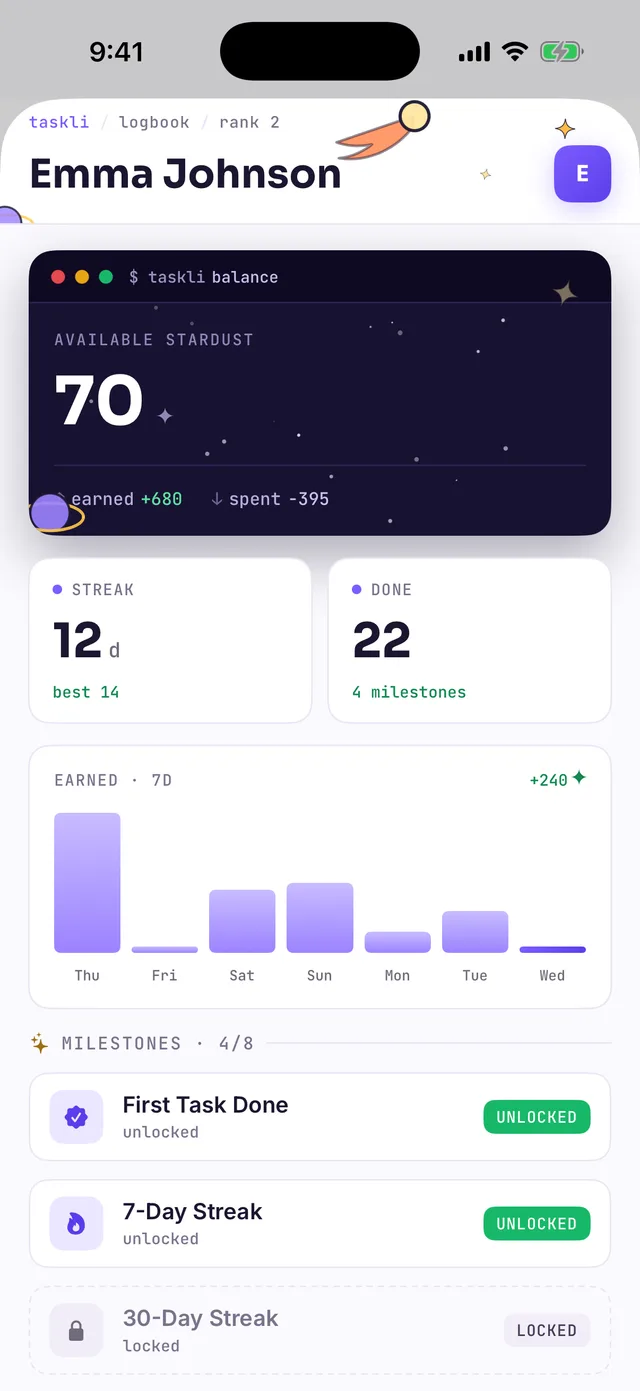
The child checks their progress in the profile — in Fly it's called the logbook and opens from the avatar in the top-right corner: the balance with its earned/spent history, the STREAK — consecutive days of completed tasks (with a personal best), a weekly earnings chart, and MILESTONES — achievements for first tasks, long streaks, and other landmarks.
Not into space? Switching themes
All the "space" terminology belongs to the Fly theme, and it's optional. You can change the look anytime: the controls tab → the LIVERY section → the Livery picker (subtitled "Repaint the ship"). Four themes are available: Fly, Kanban (a neutral board, no metaphors), Blox (quests for younger kids), and Pro Tracker (a no-nonsense tracker for teens).
The theme is a personal choice for every family member: a child can live in Fly while the parent uses Kanban — shared data isn't affected. Nothing is lost when switching: tasks, balance, streaks, and achievements stay exactly as they were; only the names and the look change. The interface language is switched in the same settings — System Default, English, or Russian.
The Fly glossary
A cheat sheet for the whole family: what the "space" names actually mean. The rule of thumb — anything that sounds like a flight is just a regular task tracker underneath.
| In the Fly theme | In plain words |
|---|---|
| crew | family |
| Captain | parent |
| Pilot | child |
| CALLSIGN | the name shown in the app |
| COMMS | email address |
| mission (code FLT-…) | task |
| COUNTDOWN | task not started yet |
| IN FLIGHT | task in progress |
| DOCKING | submitted, awaiting the parent's review |
| ADRIFT | overdue |
| FULL THRUST, MAX BURN | elevated priority |
| Submit for Review | hand in a completed task |
| ▸ Launch | create the task |
| stardust ✦ | credits — the in-app currency |
| depot, SUPPLIES | the reward shop and its items |
| resupply | purchases awaiting the parent's approval |
| flight plans | kids' requests to parents |
| STREAK | consecutive days of completed tasks |
| MILESTONES | achievements |
| logbook | profile with statistics |
| telemetry | the dashboard |
| Flight Deck, controls | settings |
| LIVERY ("Repaint the ship") | theme switching |
| ACCESS CODE | one-time invite code |
| Board the crew | activating a child account with a code |
| Disembark | sign out |
Ready for launch?
Setting up a family takes about ten minutes: sign up, add a couple of kids, create three or four tasks and stock a few rewards in the depot. From there the app runs itself — all that's left for you is approving dockings. Download Taskli on the App Store — and if you're picking a theme for your child, have a look at why Taskli has different skins.